

"Senior comfort" profile
A website older people can read, and click with ease
Octeasy's "Senior comfort" profile enlarges text to 120%, spaces out the lines, underlines links, enlarges buttons and makes the keyboard focus easy to see, in a single click. The page stays the same, only more comfortable, and every setting can still be adjusted.
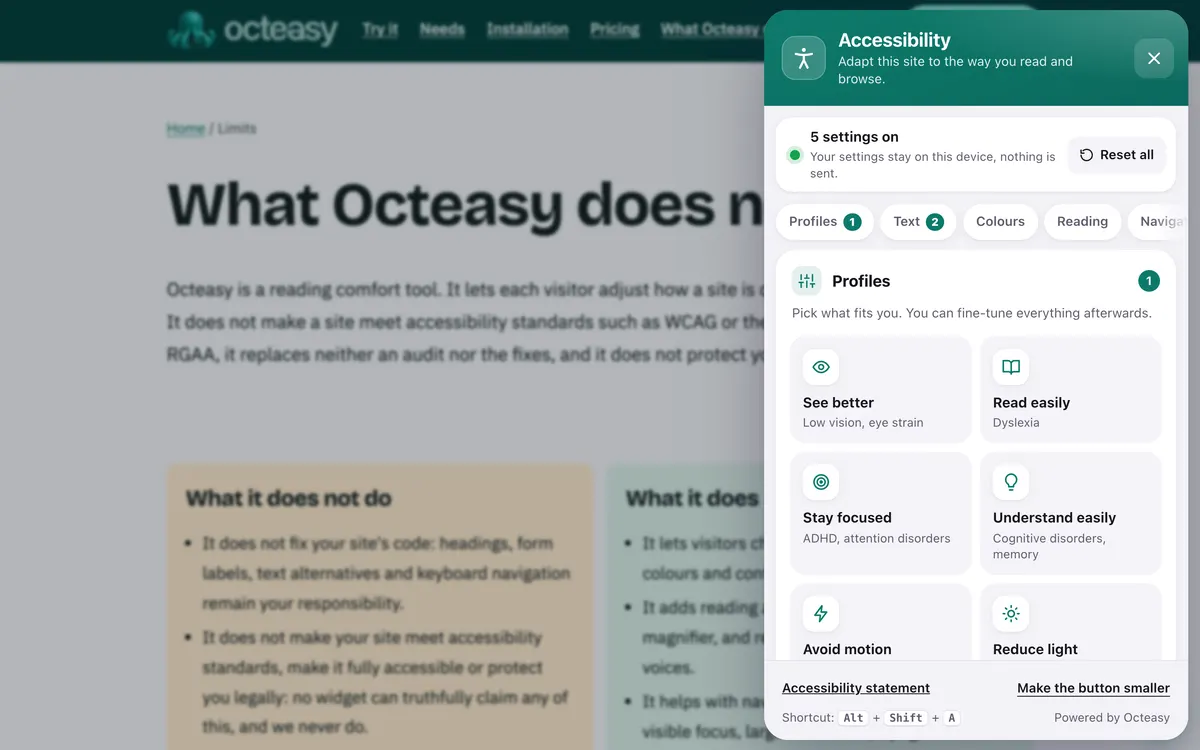
In the panel, choose "Senior comfort". Shortcut: Alt + Shift + A.
- Free for visitors
- No cookies
- Settings stay on the device
- Panel in English and French


- Text 120%
- Line height 1.75
- Underlined links
- 44 px buttons
- Strong focus
Who benefits from the "Senior comfort" profile?
The profile is designed for eyes and hands that change with age: according to the WHO, 826 million people worldwide have near vision impairment caused by unaddressed presbyopia. It also helps anyone, at any age, who finds text too small to read or a button too narrow to hit.
With a condition
- PresbyopiaLinked to age rather than a disease: the lens becomes stiffer and close-up vision loses sharpness. Larger text eases the strain, without replacing glasses.
- CataractsBlurred vision, faded colours, sensitivity to glare: links that are underlined, not just coloured, are easier to spot.
- Tremors, arthritis in the handsHitting a small button gets tricky, with or without Parkinson's disease: larger click targets leave more room for error.
In everyday life, no condition at all
- "I have to keep zooming in"Text goes up to 120% on every page of the site, with no pinching each time. Up to 200% if needed.
- "I keep missing the small buttons"Buttons and fields become at least 44 pixels high and wide: your finger or mouse lands where it should.
- "I can't tell where the links are"Every link is underlined: you can see at a glance what can be clicked.
- "I read on a tablet lying on the table"From further away and at an angle, larger text and airy lines stay readable, and buttons are easy to tap.
Text too small to read, links hard to spot: what the profile changes
The W3C notes that near vision, contrast sensitivity and fine motor control often decline with age. The "Senior comfort" profile tackles the five most common problems at once, across the whole page, without reloading it.
What gets in the way : The text is too small
What the profile does : Text size 120%
The whole page grows. Adjustable from 100% to 200%, in steps of 10.
What gets in the way : Tight lines run together
What the profile does : Wider line height 1.75
More space between lines. Also 2 or 2.4.
What gets in the way : Links only stand out by colour
What the profile does : Underlined links every link
Underlining does not depend on colour or perceived contrast.
What gets in the way : Buttons are tiny
What the profile does : Large targets 44 px minimum
Buttons and fields at least 44 pixels, 24-pixel checkboxes, taller menu links.
What gets in the way : Keyboard users lose their place
What the profile does : Strong focus yellow and black frame
A thick yellow frame with a black edge, visible on light and dark backgrounds.
Also in the panel
- Highly legible font Atkinson Hyperlegible, designed to tell apart letters that look alike.
- Higher contrast White on black or black on white, for blurred vision or a screen in sunlight.
- Large cursor A much bigger black or white pointer that is hard to lose.
- Read aloud A paragraph on click, or the whole page, using the device's own voices: nothing is sent.
Before and after: the same text
First a paragraph as you often see it, then the same one with the exact settings of the profile. To try it on a real page, open the widget.
Town library
The library switches to its winter opening hours in early November. Home delivery of books is still available for anyone who cannot get out: call the front desk to sign up.
See opening hoursBook an appointment
Turn on "Senior comfort" in three steps
On any site with Octeasy, with a mouse, a finger or the keyboard. The settings are then saved in the browser, for that site: no need to set them again next time.
Open the panel
The round button at the bottom of the screen, or Alt + Shift + A.
Choose "Senior comfort"
Text, links, buttons and focus change straight away across the page.
Fine-tune
Keep what helps, change the rest: size, line height, font, contrast or cursor.
Elderly friendly websites: what the standards say
There is little research on widgets of this kind. The benchmarks come mainly from the W3C, which describes the needs of older web users and sets WCAG rules on text size, targets, links and focus. The profile's settings follow those benchmarks.
Needs that are well known
Near vision, contrast, colour, dexterity, short-term memory: the W3C considers that its accessibility standards address most older users' needs.
W3C WAI, Older Users and Web Accessibility, 2025Resizing up to 200%
Criterion 1.4.4 (level AA) requires text to be resizable up to 200% without loss of content or functionality. The widget goes up to 200%, as long as the site's layout copes.
WCAG 2.2, criterion 1.4.4Targets of 24 and 44 pixels
At least 24 by 24 pixels at level AA (2.5.8), 44 by 44 at level AAA (2.5.5). People with hand tremors are listed among those who benefit.
WCAG 2.2, criteria 2.5.8 and 2.5.5Visible links and focus
Colour must not be the only way to distinguish an element (1.4.1, level A), and the keyboard focus indicator must be visible (2.4.7, level AA).
WCAG 2.2, criteria 1.4.1 and 2.4.7
The takeaway: these are design rules for websites, not studies measuring the effect of a widget. The profile applies them for the visitor who turns it on; the site itself has to meet them for everyone.
Making your website work for older people: what is left to do
A widget helps the visitor who opens it, but it is one more button to discover; a site that is readable by default helps everyone. These points, from WCAG and the W3C, are handled in your content and stylesheet.
Text
- A comfortable text size from the start, at least 16 pixels.
- Clear contrast between text and background.
- A page that stays readable at 200% zoom (WCAG 1.4.4).
Clicks
- Targets of at least 24 pixels (WCAG 2.5.8), 44 where possible.
- Space between neighbouring buttons.
- Buttons that look like buttons.
Navigation
- Links that say where they lead ("See opening hours" rather than "click here").
- Links that stand out by more than colour (WCAG 1.4.1).
- A keyboard focus that is always visible (WCAG 2.4.7).
Your questions about older readers
How do you make a website easy to read for older people?
Start with text of at least 16 pixels, clear contrast, underlined links and buttons that are big enough. Check that the page holds up at 200% zoom and that the keyboard focus is visible. Then add a tool such as Octeasy, so each visitor can adjust the display to suit their eyesight.
What font size is best for elderly users?
WCAG does not set a minimum size: it requires text to be resizable up to 200% without loss of content (criterion 1.4.4). A base of at least 16 pixels is a common starting point. With Octeasy, visitors go to 120% in one click, then up to 200%.
Text too small to read on screen: what can I do?
If close-up reading has become hard, an optician or eye doctor can check whether you need glasses suited to screen distance. Meanwhile, enlarging the text helps: browser zoom, device settings or, on a site with Octeasy, the "Senior comfort" profile, which enlarges and spaces out the whole page.
How big should buttons be on an elderly friendly website?
WCAG requires at least 24 by 24 pixels at level AA (criterion 2.5.8) and 44 by 44 at level AAA (criterion 2.5.5). People with hand tremors benefit in particular. The "Senior comfort" profile brings buttons and fields up to at least 44 pixels.
My parent is starting to have memory problems: can the widget help?
It can help, without treating anything. Underlined links and a visible focus show what can be clicked and where you are. The "Understand easily" profile adds spaced-out paragraphs, framed headings and read aloud. Settings stay saved for that site, on that device.
Do the settings have to be redone on every visit?
No. Settings are saved in the browser, for that site, without cookies. Visitors find their display again on their next visit, on the same device. On another device or browser, one click on "Senior comfort" brings everything back.
Does Octeasy make a site meet WCAG or RGAA?
No. Octeasy does not make a site meet WCAG or the French standard (RGAA), and it does not replace an audit. The profile changes the display for the visitor who turns it on; button size, link quality and how the page holds up at 200% are handled in the site's code.
Is the widget free for visitors?
Yes. Visitors pay nothing and install nothing: every comfort feature is included in every plan, even the free one. No cookies; settings stay in their browser. The "Senior comfort" profile works the same way on every site that uses Octeasy.
Sources (8)
- WHO, "Blindness and vision impairment", fact sheet, 10 February 2026
- NHS, "Long-sightedness" (including presbyopia), reviewed February 2023
- NHS, "Cataracts", reviewed March 2025
- W3C WAI, "Older Users and Web Accessibility", updated November 2025
- W3C, WCAG 2.2, Understanding 1.4.4 Resize Text
- W3C, WCAG 2.2, Understanding 2.5.8 Target Size (Minimum)
- W3C, WCAG 2.2, Understanding 2.5.5 Target Size (Enhanced)
- W3C, WCAG 2.2, criteria 1.4.1 Use of Color and 2.4.7 Focus Visible
Content reviewed on .
Try "Senior comfort" here, then add it to your site
Visitors get every comfort feature, even on the free plan. A single line of script is all it takes.